> This repository is frozen at v2.0.0-community (LTS).
No further releases will be tagged. Self-compiling this source still
produces a working Community binary under GPL v3.
The Premium edition (Web Print Premium, Email-to-Print, Driver
Auto-Install) is distributed separately as an official signed binary.
See docs/RELEASE.md for the full release strategy.

ShaPrint
The Simplest & Most Reliable LAN / Cross-VLAN Virtual Printer Sharing Solution for Windows
ShaPrint is an advanced, .NET 8-based application designed to reliably share physical printers across local networks (LAN) and cross-subnet/VLAN environments. It serves as a robust alternative when native Windows SMB Printer Sharing fails, struggles with network credential conflicts, or is obstructed by strict Windows security policies.
By utilizing a Virtual Printer Port (Named Pipes) architecture and direct TCP/UDP transmission, ShaPrint guarantees that documents are printed with 100% fidelity and native quality.
✨ Key Features
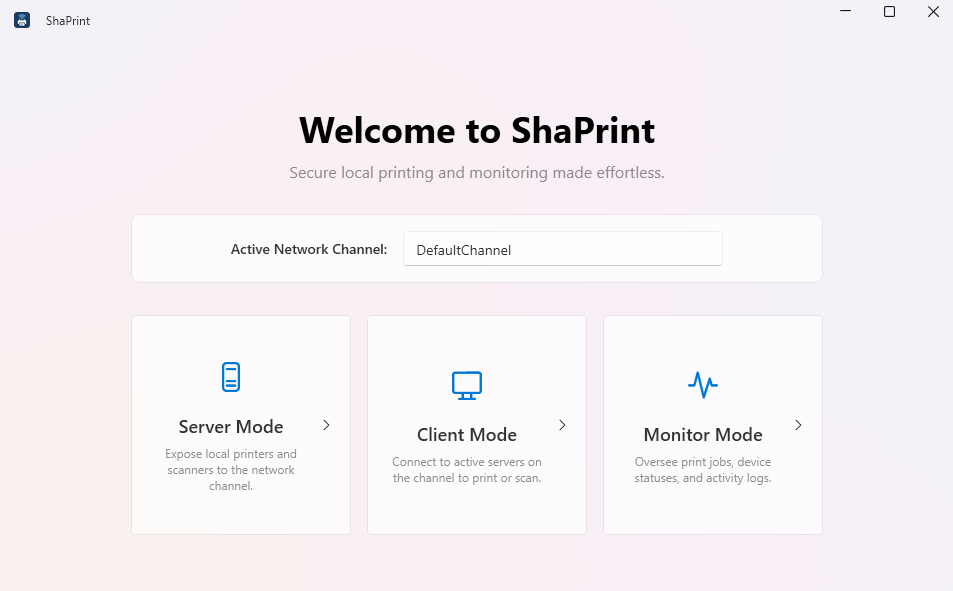
- 🎭 Unified Application: One executable handles everything. Operate as a Server (hosting the physical printer) or a Client (routing the documents) from a single unified interface.
- 💎 Native Driver Quality: Unlike traditional workarounds that degrade quality to Generic/Text or PDF rasterization, ShaPrint leverages the official printer driver (e.g., Epson, HP, Canon) on the Client side. Margins, colors, and layouts are preserved perfectly.
- 🌍 Cross-VLAN Support: Use the Specific Server IP feature to bypass router boundaries, allowing Clients to connect to Servers located in entirely different subnets or VLANs.
- 🔄 IP Change Auto-Detection: Automatically detects when the server IP changes (e.g., DHCP reallocation, network migration) using a stable, unique server identity. It dynamically updates client configurations and restarts active pipe listeners without user intervention or print interruption.
- 🔒 Enterprise-Grade Security: Network communication is secured via a shared Network Channel password. All discovery payloads are verified using HMAC signatures, ensuring only authorized clients can discover or print to your server.
- ⚡ Seamless Auto-Updater: ShaPrint includes a built-in background updater. It checks for new releases on GitHub and updates itself seamlessly without interrupting active print jobs.
- 👻 Stealth Background Service: Minimize the app to the System Tray to handle print jobs silently. ShaPrint integrates directly with the Windows Task Scheduler to automatically start at boot with the highest privileges, entirely bypassing annoying UAC prompts.
- 🔔 Real-Time Notifications: Receive native Windows Toast notifications for print job completions, printer errors, client connections/disconnections, and scan results. Works reliably even when the application is minimized to the system tray or running as a background startup service. Clicking a toast instantly restores the application window.
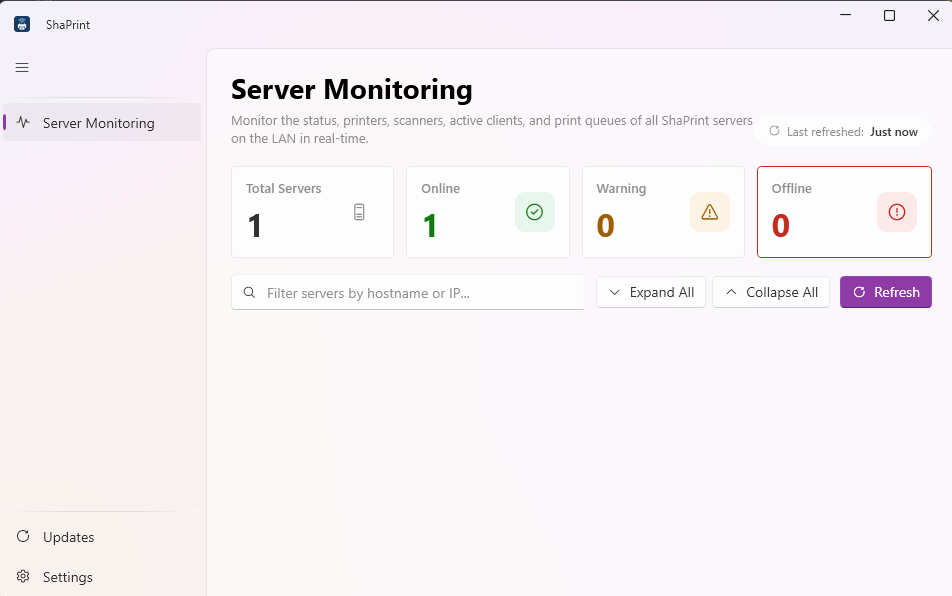
- 📊 Server Monitoring Mode: Consolidated dashboard to monitor all active servers on the local network. View real-time server information, network channel, software version, uptime, exposed printer queues, scanner availability, active client connections, recent job histories, and printer/scanner error notifications.
📸 Screenshots
Switch Mode
 |
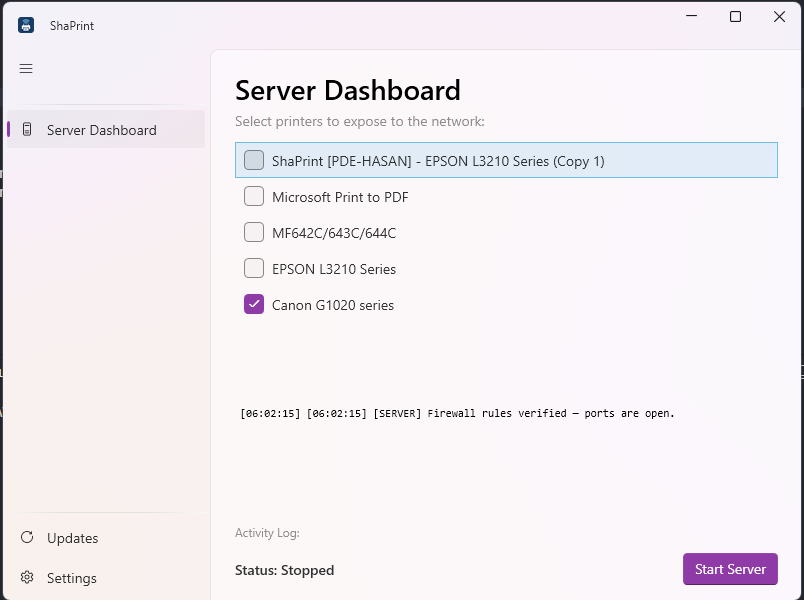
Server Mode
 |
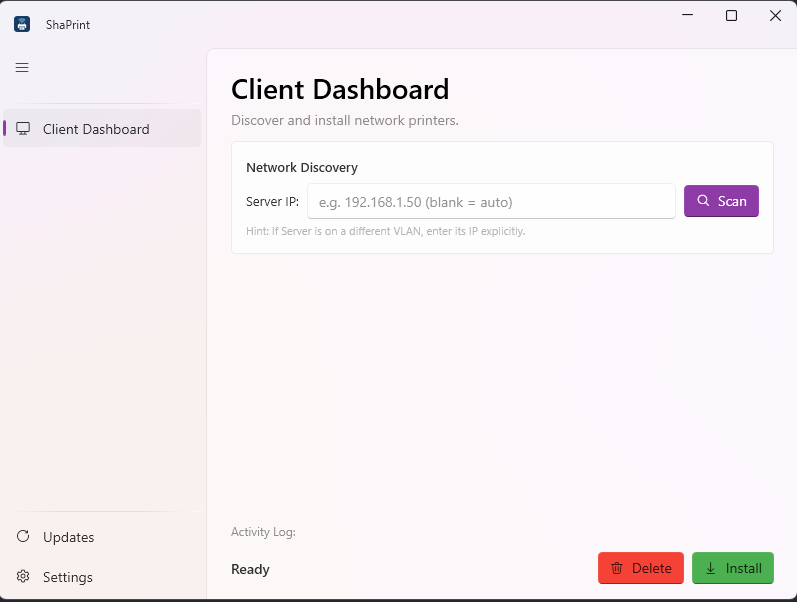
Client Mode
 |
Monitoring
 |
Settings
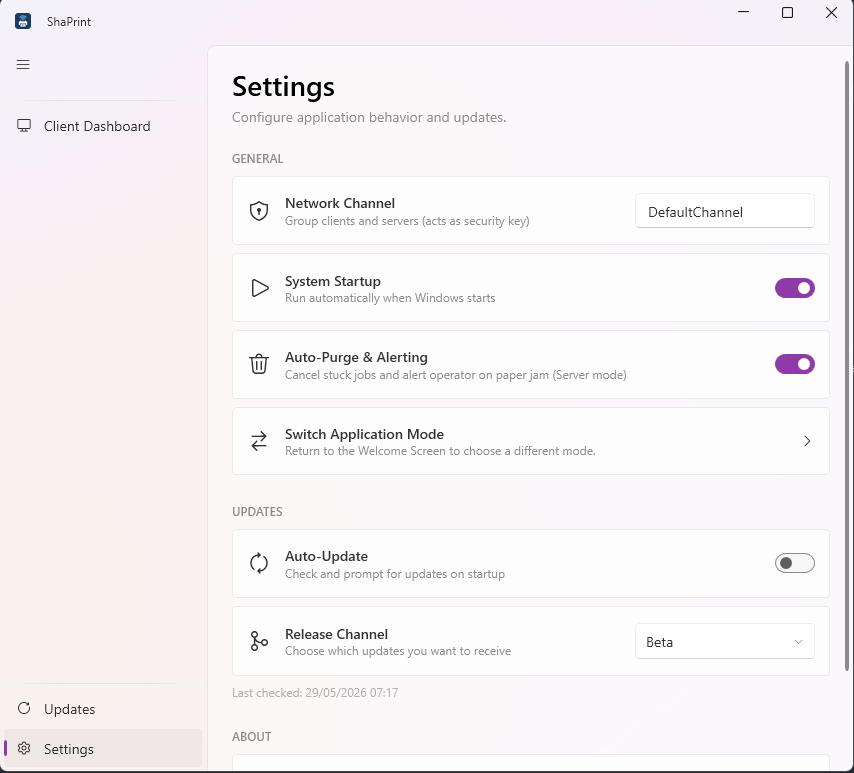 |
Update Manager
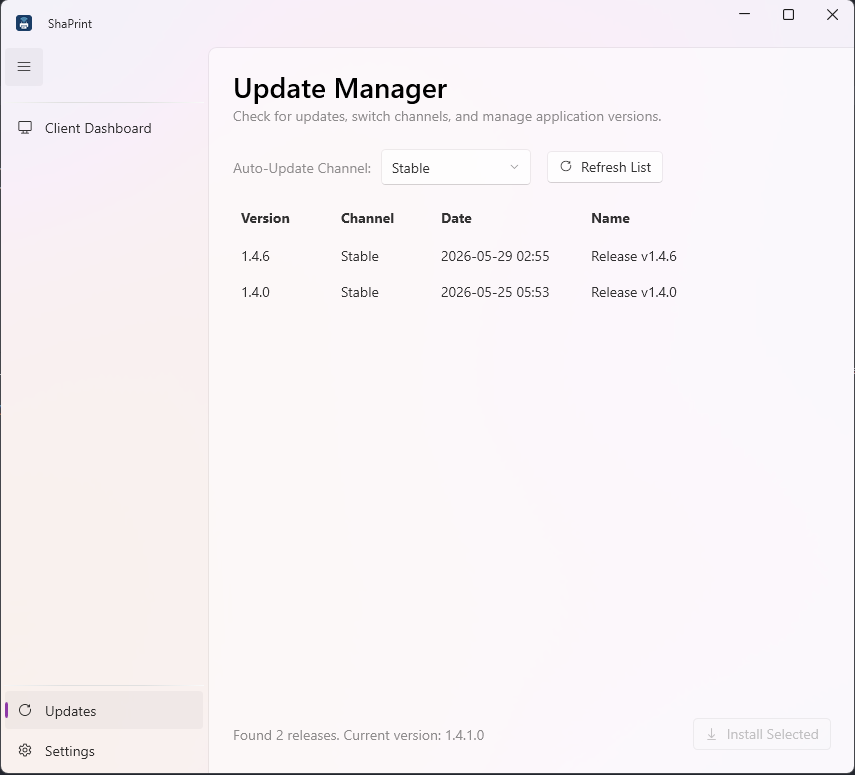 |
🏗 System Architecture
Server Mode
Running on the computer directly connected to the physical printer via USB or LAN, the Server scans for local printers and listens for raw print spool data on TCP Port 9877. It also broadcasts its presence using UDP Port 9876 for auto-discovery.
Client Mode
The application intercepts print jobs by creating a Virtual Printer Port within the Windows Spooler. Any document printed from standard applications (Word, Chrome, Acrobat) to this virtual printer is instantly intercepted and streamed directly to the Server.
Monitoring Mode
Operators or users can monitor all active ShaPrint servers across the network channel. It discovers active servers via UDP and queries their status on TCP Port 9878 to retrieve real-time encrypted details.
💻 System Requirements
Before installing ShaPrint, please ensure your system meets the following requirements:
- Operating System: Windows 10 or Windows 11 (64-bit /
x64 architecture)
- Minimum Version/Build: Windows 10 Version 1809 (Build
10.0.17763) or newer (released November 2018)
- Pre-requisites: None. The installation is fully self-contained, meaning you do not need to install the .NET Runtime manually.
🔒 Security & Safety
ShaPrint implements defense-in-depth security to protect your local network, computer performance, and hardware.
Encryption & Authentication
| Layer |
Mechanism |
Description |
| TCP Data (Print/Scan/Monitor) |
AES-256-GCM |
All TCP payloads (print jobs, scan data, monitoring status) are encrypted with AES-256 in Galois/Counter Mode — providing both confidentiality and tamper detection. Each encryption uses a fresh random 96-bit nonce. |
| UDP Discovery |
HMAC-SHA256 |
Discovery responses are signed with HMAC-SHA256. Clients verify the signature before trusting any server response, preventing spoofing and man-in-the-middle attacks. |
| Key Derivation |
PBKDF2 (100k iterations) |
All cryptographic keys are derived from the Network Channel shared secret using PBKDF2 with 100,000 iterations and unique salts per purpose (AES, HMAC, local config). |
| Config Integrity |
HMAC-wrapped JSON |
Server configuration files are stored with an embedded HMAC to detect tampering. Corrupted or modified configs are rejected on load. |
Network Protection
- Rate Limiting: Discovery server limits requests to 5 per second per IP address. Stale rate-limit entries are periodically pruned to prevent memory leaks.
- Payload Size Limits: Every network payload has a strict maximum size — discovery responses (8 KB), monitor requests (4 KB), print jobs (100 MB). Excessively large payloads are rejected immediately.
- Input Sanitization: All strings received from the network (printer names, server names, driver names) are validated against a strict whitelist regex. Shell metacharacters (
' " ; $ \ | & < > \n \r \t \0`) are explicitly blocked.
- Concurrency Throttling: Maximum 10 concurrent print jobs to prevent resource exhaustion.
- Firewall Integration: On server start, Windows Firewall rules for ports 9876/UDP, 9877/TCP, and 9878/TCP are automatically configured (with user consent via UAC prompt). Rules are persistent — only needed once.
- Connection Timeout: Monitoring TCP queries time out after 5 seconds, preventing hung connections from accumulating.
Performance & Stability
- Lightweight Polling: Monitor mode polls servers every 15 seconds with requests staggered 1 second apart to avoid network/CPU spikes.
- Unicast Sweep Control: Bulk IP sweep (up to 1024 addresses) runs only on first startup and manual refresh. Routine polling uses broadcast discovery only (
skipUnicastSweep=true).
- In-Memory Logging: Server logs are stored in memory (max 200 entries) — no continuous disk I/O.
- Automatic Job Recovery: PrintMonitorService automatically detects and cancels stuck/error print jobs, preventing spooler congestion.
Hardware Safety
ShaPrint interacts with hardware exclusively through standard Windows APIs:
- Printing: Windows Print Spooler API (
AddJob / spool file injection)
- Scanning: Windows Image Acquisition (WIA) 2.0
- Result: The application cannot cause physical damage to printers, scanners, or computer components. All risks are identical to printing or scanning from any standard Windows application.
Safety Assessment Summary
| Concern |
Verdict |
Notes |
| Local network security |
🟢 Safe (with configuration) |
AES-256-GCM + HMAC-SHA256 provide strong protection. Must customize Network Channel from default for multi-tenant environments. |
| Computer performance |
🟢 Safe |
CPU/RAM impact is negligible for monitoring. Print/scan load is temporary and on-demand. |
| Hardware damage |
🟢 Safe |
Software-only — uses only standard Windows APIs (Spooler, WIA). No risk of physical damage. |
⚠️ Critical Recommendations
🔴 Customize Your Network Channel
- Go to Settings → Network Channel
- Change from the default
"DefaultChannel" to a unique, random string known only to your devices
- Share the same value with all clients on your network
- This regenerates ALL encryption keys — without this, any ShaPrint instance on the same network can decrypt your traffic
Coordinate with IT
- Inform your network administrator about these ports:
UDP 9876 — Service discoveryTCP 9877 — Print/scan data transferTCP 9878 — Server monitoring status
- Ask them to restrict access to these ports to your subnet/VLAN only
Use Only on Trusted Networks
- ShaPrint is designed for local LAN / VPN environments
- Do not expose ports to the public internet or untrusted WiFi networks
🚀 Installation
ShaPrint is packaged as a fully self-contained Standalone Setup. You do not need to install the .NET Runtime manually.
- Download the latest
ShaPrint_Setup_vX.Y.Z.exe from the GitHub Releases page.
- Run the installer and follow the prompts.
- The application will automatically place shortcuts on your Desktop and Start Menu.
📖 How to Use
[!IMPORTANT]
Native Driver Requirement: To guarantee print fidelity, you must install the official printer driver on the Client PC. For example, if the Server is hosting an Epson L3210, you must install the Epson L3210 driver on the Client PC beforehand.
1. On the Server PC (Hosting the Printer)
- Open ShaPrint from your Desktop.
- Ensure you and your clients agree on a Network Channel password in the Settings.
- Select the Server tab.
- Check the boxes next to the physical printers you wish to expose to the network.
- Click Start Server.
- You may now close the window; the application will silently minimize to the System Tray.
2. On the Client PC (Sending Print Jobs)
- Open ShaPrint.
- Ensure your Network Channel password matches the Server's exactly.
- Select the Client tab.
- Auto-Discovery: Click Scan LAN / Connect if you are on the same local network.
Manual Discovery: Enter the Server's IP address into the "Specific Server IP" box and click Scan if you are on a different VLAN.
- Select your target printer from the list and click Install Selected Printer.
- Open any application, press
Ctrl + P, select ShaPrint - [Printer Name], and Print!
3. Monitoring Server Status
- Open ShaPrint.
- Select the Monitor tab from the sidebar.
- The dashboard will automatically scan and list all active servers on your network channel, displaying their status, connected clients, recent jobs, and active printer/scanner status.
- You can filter servers by hostname/IP, filter by online/offline/warning status, or click "Refresh" to trigger a manual sweep.
⚙️ Building from Source
To compile the source code and generate the installer yourself, ensure you have the .NET 8 SDK and Inno Setup 6 installed.
1. Compile the Application
Open a terminal in the root directory and run the following commands to publish the binaries:
# Publish the main WPF Application
dotnet publish ShaPrint.WpfApp/ShaPrint.WpfApp.csproj -c Release -r win-x64 --self-contained true -p:PublishSingleFile=true -p:IncludeNativeLibrariesForSelfExtract=true

# Publish the Background Updater
dotnet publish ShaPrint.Updater/ShaPrint.Updater.csproj -c Release -r win-x64 --self-contained true -p:PublishSingleFile=true -p:IncludeNativeLibrariesForSelfExtract=true
2. Build the Windows Installer
Using PowerShell, compile the .iss script:
& 'C:\Program Files (x86)\Inno Setup 6\ISCC.exe' installer.iss
Your compiled installer (ShaPrint_Setup_v1.0.x.exe) will be generated inside the Output\ directory.
🛠 Troubleshooting
- Error: "Driver X is not installed on this computer" (Client): You must install the official manufacturer driver for the printer on the Client PC before ShaPrint can create the virtual printer.
- HMAC Verification Failed: The Client and Server do not share the same Network Channel password. Update the Network Channel in Settings to match exactly.
- Client cannot find the Server (Empty scan list): Ensure ports
9876/UDP and 9877/TCP are open on the Server's Windows Firewall. If you are on a different subnet, auto-discovery will not work—use the "Specific Server IP" feature.
- Word freezes or "Connecting to Printer" takes forever: This indicates Windows Bidirectional Support (BIDI) is enabled. Go to Control Panel -> Devices & Printers -> Right-click the ShaPrint Printer -> Printer Properties -> Ports tab -> Uncheck Enable bidirectional support.
- Printed output is gibberish/error codes: The Printer Driver selected on the Client PC does not match the actual physical printer on the Server PC. Ensure both machines utilize the same driver.
Developed by ardli-firman
Open Source Print Management
